
Rollov DocsStart here
Getting started
What Rollov is, how a day works, and a tour of the app's main parts in five minutes.
On this page
What Rollov is
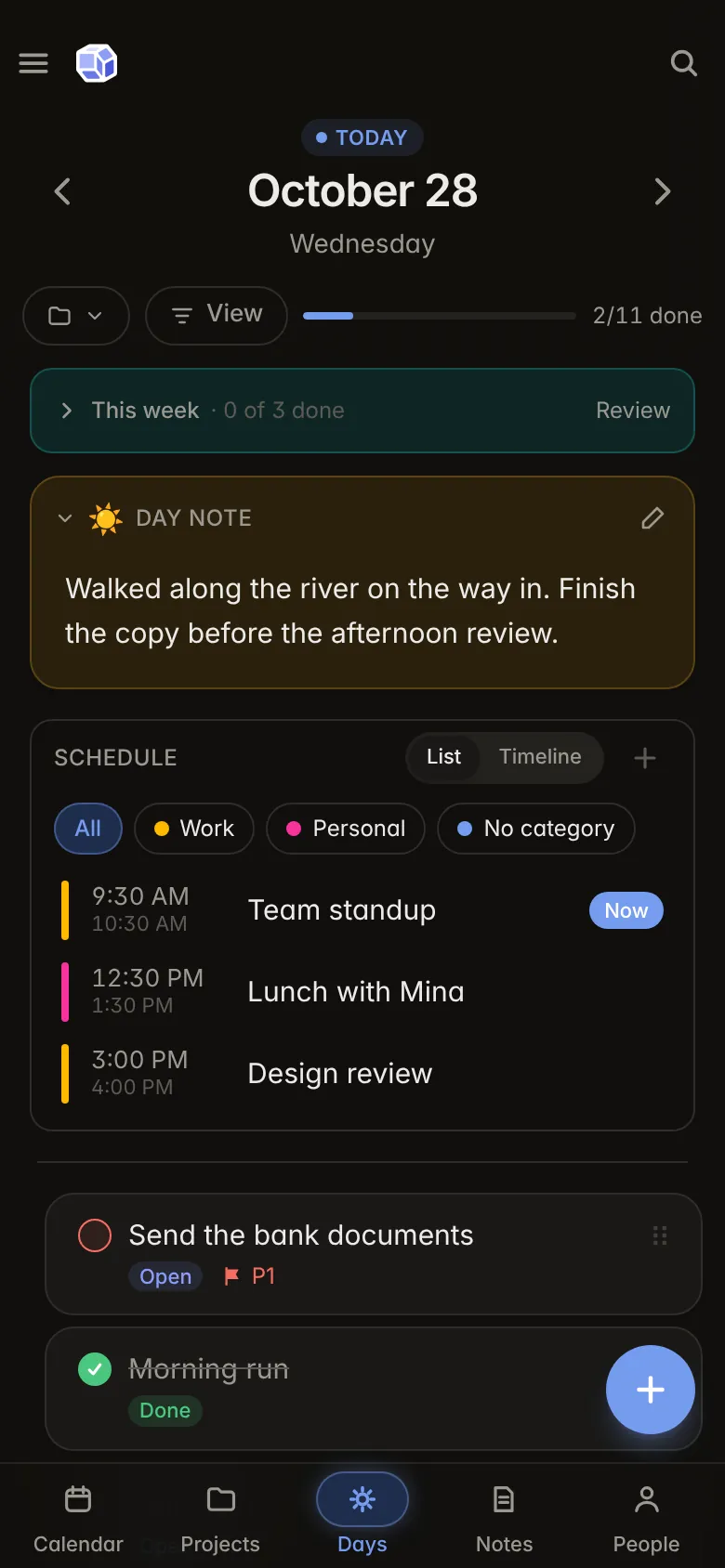
Rollov is a daily planner that gives every day its own page. You write down what you want to get done today, check things off as you go, and at midnight Rollov turns the page: what you finished stays behind, what you didn't rolls over to the new page, and yesterday is kept exactly as you left it.
Around the day page sit the other parts you need to run a life: a calendar, projects with subtasks, linked notes and a page for each person you know. Everything works offline, syncs between your devices, and can be end-to-end encrypted.
Create your account
- Go to my.rollov.app/signup.
- Sign up with your email and a password, or continue with Google or Apple. Once you are signed in you can also add a passkey in Settings › Account and use it next time.
- Rollov opens on today's page with a short welcome card.
Rollov is in early access, and every feature is free for now, with no card needed.
Your first day
The welcome card explains a day in three steps:
- Write down today's tasks. Tap the + button (or press Alt+N on a computer) and type a task. Press Enter to add it and keep going with the next one.
- Check them off. Tap the circle beside a task when it is done. Tap the task itself to open its panel, with notes, dates, subtasks and its history.
- Let the rest roll over. At midnight, unfinished tasks move to tomorrow on their own, and today's page is kept as it was. See What happens at midnight.
Find your way around
On a phone, your five main pages sit in the bottom bar: Calendar, Projects, Days, Notes and People by default, with your main page in the middle. On a dated page, such as Days, a day note or the weekly review, a sideways swipe goes to the date before or after. The menu (☰) at the top left has every other page. A sheet that slides up from the bottom, such as a new task, an event or a list to pick from, closes when you pull it down by the handle at its top or its title, or flick it down; a short pull springs back.
On a computer, the sidebar lists every page, your main page first, with this month's calendar above. Pages open in tabs along the top, so you can keep a note, a project and today side by side. See Tabs and split view.
Back (the back arrow at the top of a page, the Android back button, or the back gesture) returns to exactly where you were before: the same page and tab, scrolled where you left it, with its filters. Something you opened from another page, such as an event from the Events list, closes and goes back there in one press. The main pages and their tabs have no back arrow, since the bottom bar moves between them.
Above the title, each item's page says what it is (Event, Note, Task, Tag and so on), so pages that look alike are easy to tell apart. When back leads somewhere else than the page's own section, such as a tag you opened from an event, the section's name sits beside it (Tag · Tags ›): tap it to go to the section's main page.
You can pick which five pages are in the bar and which one Rollov opens on, in Settings › General › Bottom bar and main page. See Customization.
The parts of Rollov
| Part | What it is for |
|---|---|
| Days | One page per day with the week's goals, the day's events, your tasks and a note about the day. |
| Calendar | Months, weeks, days and years, your events and the calendars you already use, such as Google Calendar and iCloud. |
| Projects | Bigger goals with sections, subtasks, a backlog, a board and a timeline. |
| Notes | Notes in folders with tags, [[links]], backlinks, a graph and every version kept. |
| People | A page for each person: what to ask next time, follow-ups, memos, dates and who you are drifting from. |
| Lists, tags and pins | Gather anything across the app, and find it again with search. |
Add anything
The floating + button adds what fits the page you are on: a task on a day, an event on the calendar, a note in Notes, a project in Projects, a person in People. Its menu has more, such as a brain dump that turns pasted lines into tasks, or Save a link for the scrapbook.
When you type a task, Rollov reads dates, priority and project from the line as you write:
Report fridaysets the focus date to Friday;Report by fridaymakes it the due date.!1,!2or!3(orp1top3) sets the priority.+Projectputs it in an existing project, and/Sectionin a section.
What it found shows as chips above the field. Tap a chip's × to keep those words in the title instead. This runs on your device, so it works offline and with encryption on.
A time makes the line an event instead: Lunch with Minji fri 12:30 at Gangnam adds Friday's lunch from 12:30 to 1:30, at Gangnam, with Minji. See Events in one line.
Search and the command menu
Search finds any task, note, project, event or person by a word in it, including finished tasks and earlier versions of a note. Open it from the bottom bar or menu, or with Alt+S. See Search.
On a computer, Ctrl+K (⌘+K on a Mac) opens the command menu from anywhere: go to any page, or open a task, note or project by its title.
The control center
The button at the top right opens the control center: what starts in the next hour, a running focus timer, AI drafts waiting for you, your quick tiles (dark mode, lock now, new task and more) and the light or dark theme. A red dot on the button means something starts soon. See Control center.

The guided tour and walkthroughs
The first time you open Rollov it offers a one-minute tour of the main parts. You can take it later, or replay it any time, from Settings › Help, which also has a short walkthrough for each part: your days, the calendar, projects, notes, people and making the app yours. Each walkthrough opens its page and points at the parts as it explains them.

Next steps
- Learn how rollover decides what moves to tomorrow.
- Bring in your Google, iCloud or phone calendars.
- Install Rollov on your phone or computer.
- Turn on the app lock or end-to-end encryption.
Still stuck?
Write to support@rollov.app with what happened and which device you were on. Questions, bugs and ideas are all welcome.
In the app: Settings › Help has the guided tour and a walkthrough for each part.