
Rollov DocsPlan
Days and rollover
The day page, how unfinished tasks roll over at midnight, planning ahead, repeating tasks, reminders and the weekly review.
On this page
One page a day
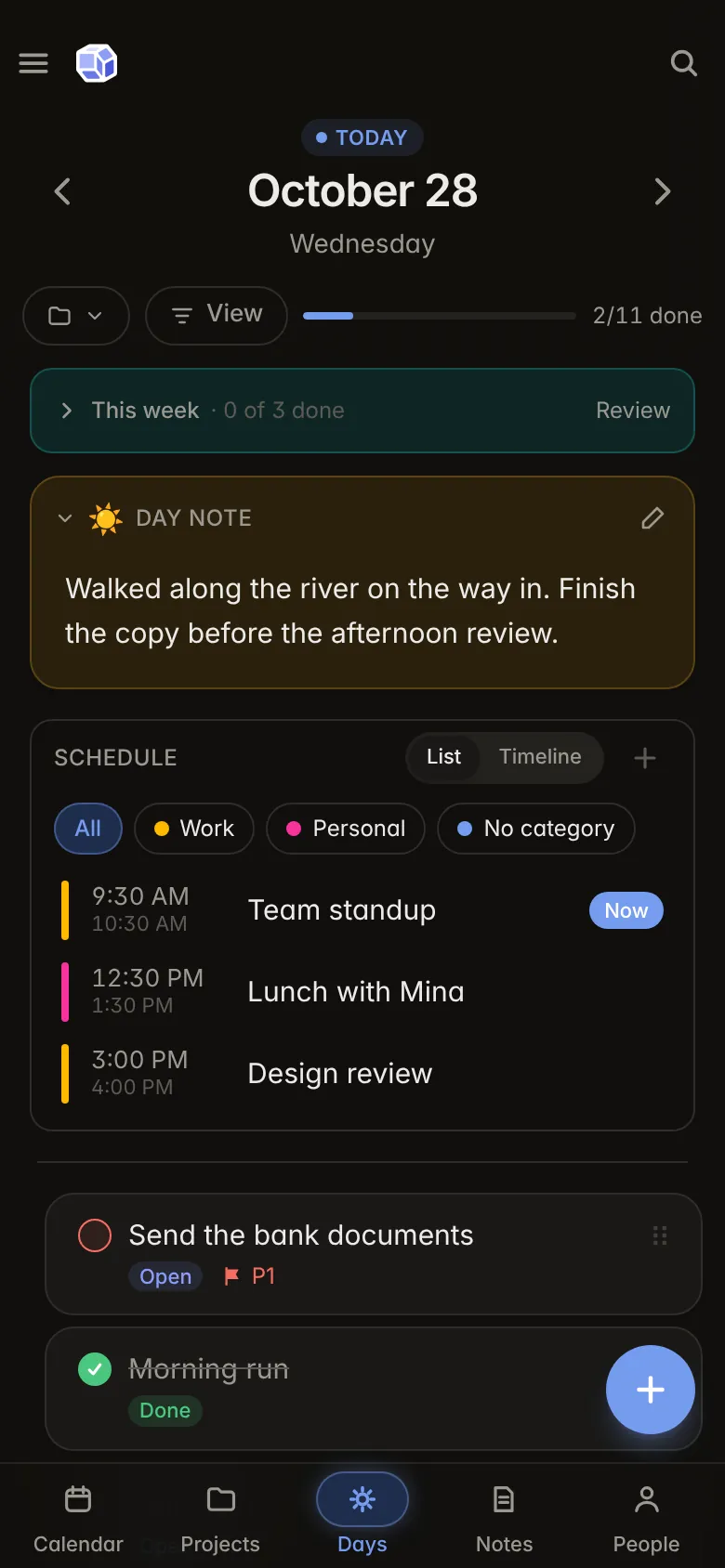
Days is the heart of Rollov. Each date has its own page, and today's page is where you plan and do the day's work. From top to bottom it shows:
- This week: the week's goals, folded until you open them.
- The schedule: the day's events, all-day ones first, as a list or a timeline.
- Your tasks, in sections such as Morning or Work, grouped by project inside each section.
- The day note: a few lines about the day, for a journal or meeting notes.
- People today: who you met and the memos you wrote about the day (folded and behind the app lock by default).
The arrows beside the date, or a sideways swipe on a phone, go to the day before or after; the date at the top stays in place while the next day's tasks and events slide in under it. Tap the date to pick any day from a month, where dots show what was done, rolled over or overdue. Today under the date brings you back, and on any other day a Back to today button also floats at the bottom of the screen, so it is in reach however far you have scrolled.
Tasks
Add a task with the + button. A task can have:
- a focus date (the day you plan to work on it) and a due date (when it must be done),
- a priority from P1 (urgent) to P3,
- a project, a section, a colour and an icon,
- a time estimate, which adds up in the day header against your daily capacity,
- notes, notes by date, subtasks to any depth, tags, pins and a reminder.
Tap a task's circle to mark it done. Tap the task itself to open its panel, where you can change everything, mark it in progress or won't do, see its history day by day, and open it full screen. A done or dropped task opens again from the same mark.
Subtasks take their parent's dates, priority and colour until you give them their own, and a parent's subtasks can be folded away.
What happens at midnight
At midnight where you are, Rollov closes the day:
- Each task on the page is kept as it was at the end of the day, with its status. The page stays exactly like that from then on.
- Every task that is still open moves to the new day's page, in its section and its place.
- Done and won't-do tasks stay on the day they were finished.
The server does this, so it happens even while your phone is off, and your devices agree. If you were offline, your phone does the same on its own and the two match once it syncs. Changes you made offline count on the day you made them.
A rolled-over task shows how many days it has been on your list. A task that lingers for a week or more asks, in its panel, whether to keep it or drop it; Keep quiets it for another week.
Sections that stay on their day
Each section's menu has Roll unfinished tasks over. Turn it off for a section whose tasks belong only to that day, such as "Today only" or "Errands", and its unfinished tasks stay behind instead of moving on.
Tasks in none of your sections are in the default Tasks section, which always rolls over.
Past days
Flip back to any date to see the page as the day ended: what was done, what rolled over and what was overdue. Past pages are read only. A task deleted during a day is listed in an Archived section at the bottom of that day, where you can open it and restore it.
Plan your day
When tasks have rolled over, or backlog tasks have come due, today's page offers Plan your day. It walks through each rolled-over task (done, a later date, won't do, or keep) and offers open tasks from your projects that are not on today's page yet.
From 5 pm, it offers to wrap up the day: what got done, and a quick decision about what is still open, which otherwise rolls over. Each offer comes once a day across all your devices.
Upcoming and days ahead
Upcoming (in the menu) lists the days after today with what is due, in focus or repeating on each, with a bar for the day's estimated work against your daily capacity. A date button moves a task to another day.
The next arrow on the day page also goes past today. A day ahead shows its schedule, its day note ("what to remember for the day") and the tasks due or in focus then. Add a task for this day makes a task with that day as its focus date; it waits on today's page among the later tasks until its day comes.

Repeating tasks
A task's Repeat option makes it come back every day, every weekday, on chosen weekdays, monthly on a day, or a number of days or weeks after you finish it. Each date gets its own task with its own history, so past days never change. While one is still open, the next waits; the open one lists the dates it stands for.
Habits (in the menu) shows each repeating task as a habit, with streaks, the last 30 days and a year heatmap.
Focus timer and estimates
Start a 25-minute focus session or a stopwatch from a task's panel. The timer shows in the app bar or sidebar and in the control center, and stopping it records the time spent on the task.
Give tasks an estimate and the day header adds them up against your daily capacity (6 hours unless you change it in Settings › General). Past it, the total turns amber on today's page.
Reminders
Settings › Reminders has:
- A daily reminder at the time you choose, with how many tasks are in focus, due and overdue today. It sends counts only, never titles.
- Task reminders: set a time in a task's panel and get a push at that time on every device where notifications are allowed.
- Event alerts: see Event alerts.
Turn on Name tasks and events in reminders to see titles in the notifications (not available with encryption on).
Weekly goals and the review
The This week box at the top of each day lists that week's goals, on past and future days too. Goals are ordinary tasks (with dates, a project and subtasks) that never land on a day page, so they never roll over. To today puts one on today's page.
Weekly review shows a week at a glance: what got done, what was added, what rolled over most, done per project, and projects with nothing open. Insights adds trends over time, such as the share of tasks that roll over each week and your busiest weekdays.

The view menu
The day page's View menu filters and groups the page: by timing (overdue, current, later), status, priority or section. It can narrow the page to one project, and choose whether finished tasks stay in place, struck through, or move to the bottom.
A project that is paused rests its tasks off today's page until you set it back to active. A line under the tasks says how many are resting, with Show and Hide.
Still stuck?
Write to support@rollov.app with what happened and which device you were on. Questions, bugs and ideas are all welcome.
In the app: Settings › Help has the guided tour and a walkthrough for each part.